
PAPER FOLD EFFECT / LIVE RESULT

PAPER FOLD EFFECT

✓ 9 STATES✓ 4.125 SEC✓ 30 FPS✓ MP4 / WEBM
OPEN FULL STUDIO
01 / SOURCE + OUTPUT

THE SAME FRAME, FOLDED.

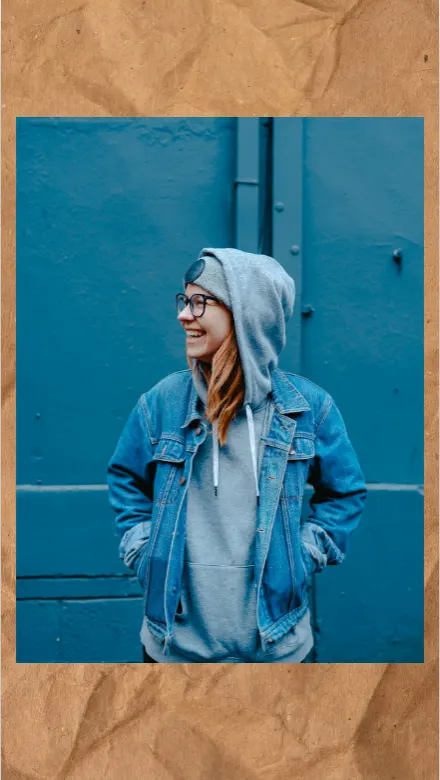
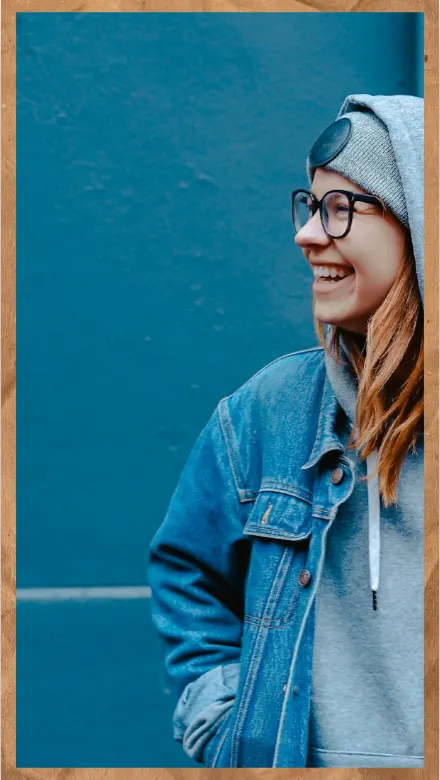
Portrait source image prepared for the Paper Fold effect
SOURCEONE IMAGE
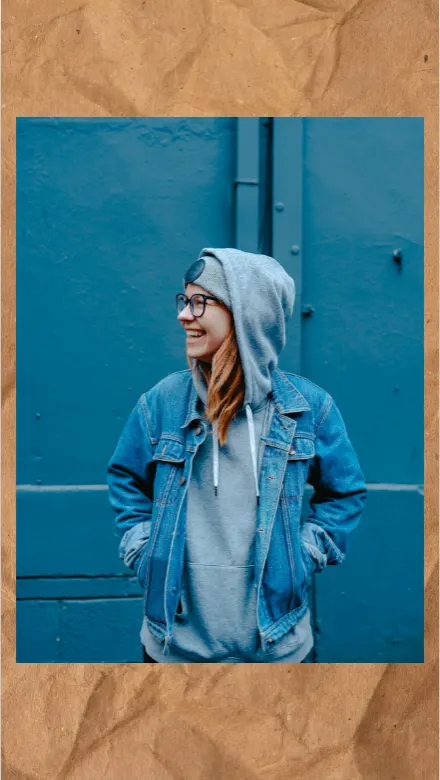
Paper Fold output revealing the source image through photographed paper plates
OUTPUT4.125 SEC / 30 FPS
02 / SETTINGS

FIT. FILL. WIDE.

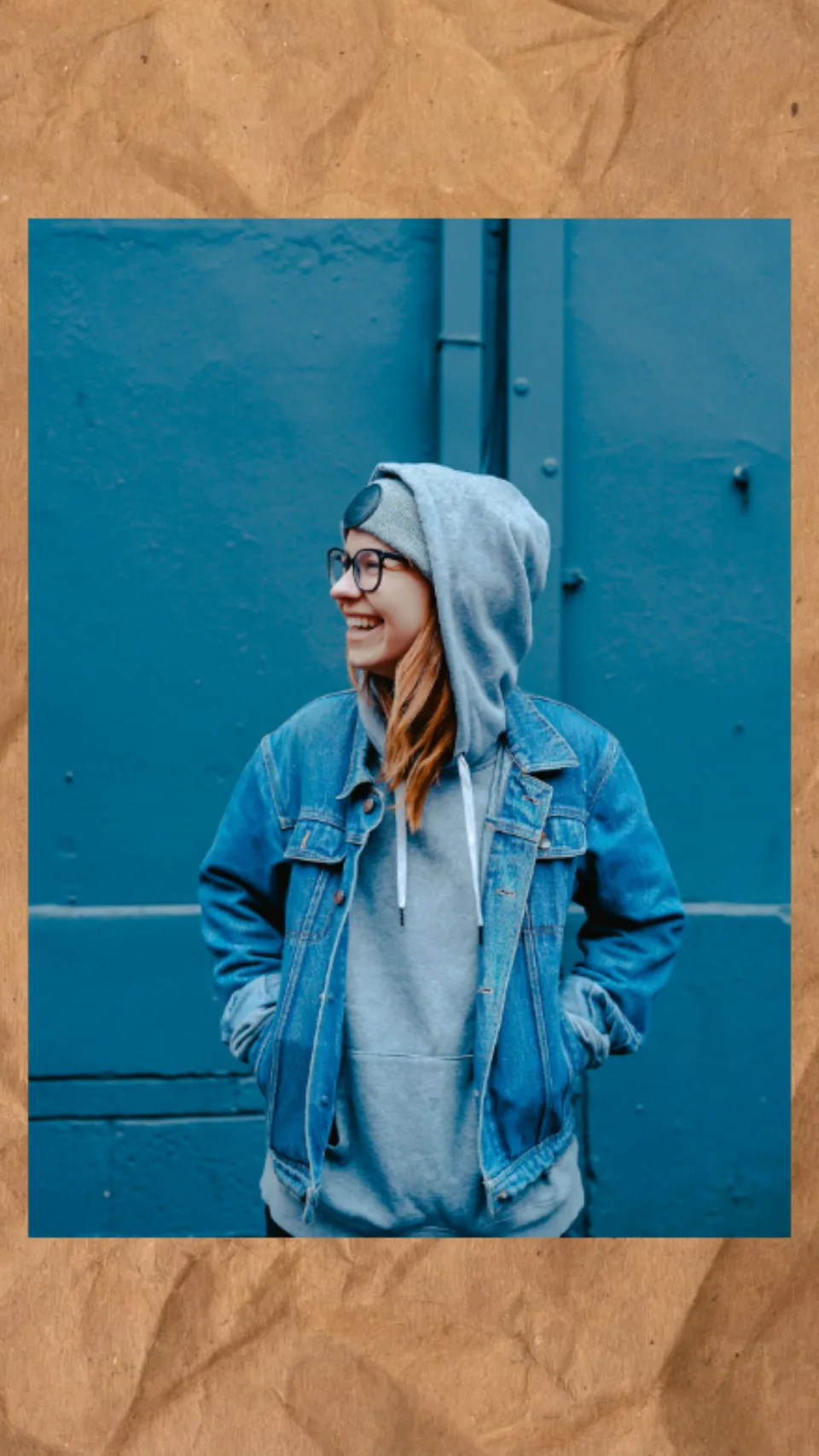
Paper Fold Fit setting in a portrait frame
FIT / 9:16
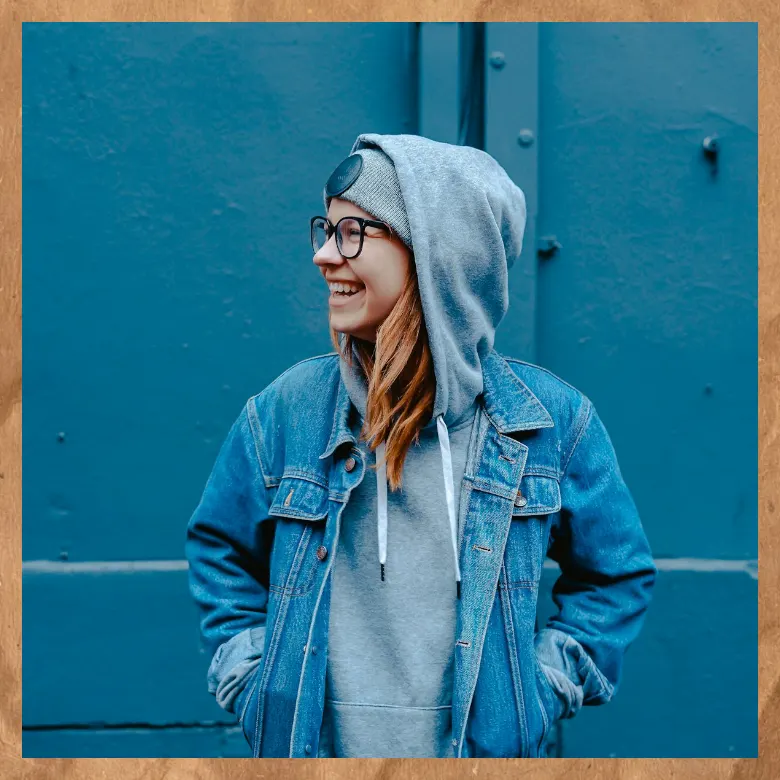
Paper Fold Fill setting in a square frame
FILL / 1:1
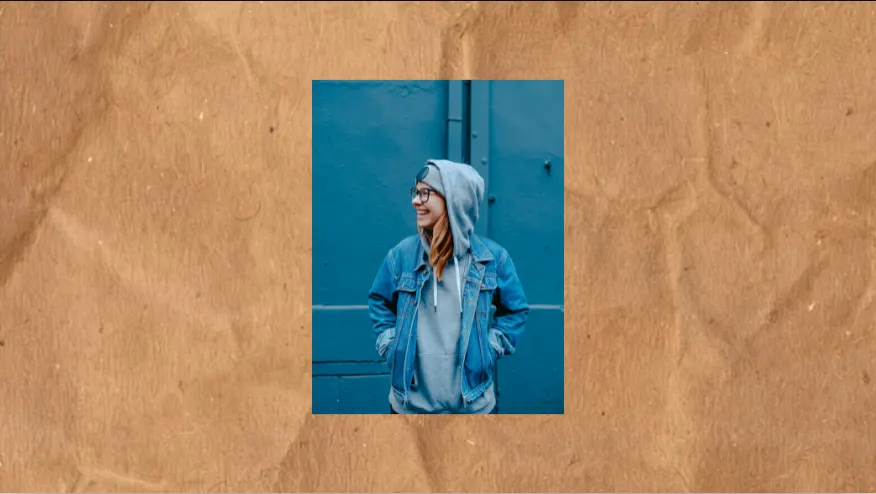
Paper Fold Wide setting in a landscape frame
WIDE / 16:9
03 / FRAME CHECK

CROP CHANGES THE CUT.

Paper Fold failed crop with the subject clipped at the edge
FAILED / FILL + OFFSETSUBJECT CLIPPED
Paper Fold corrected Fit crop with the subject held inside the frame
CORRECTED / FITFULL FRAME
04 / EXPORT ACCESS

PREVIEW FIRST. EXPORT CLEAN.

FREEUNLIMITED720P / 30 FPSWATERMARK$0
CREATOR ANNUALUNLIMITED1080P / 60 FPSCLEAN$39/ YEAR
CREATOR MONTHLYUNLIMITED1080P / 60 FPSCLEAN$4.99/ MONTH
EXPORT PACK20 EXPORTS1080P / 60 FPSCLEAN$3.99 ONE TIME
VIEW ALL EXPORT OPTIONS →
05 / FOLD NOTES

PAPER WITH A FRAME CLOCK.

01

AN IMAGE BECOMES THE SHEET

Paper Animation maps the uploaded image into the final paper rectangle instead of placing it behind a generic transition. The photograph stays recognizable while physical paper plates reveal it fold by fold. Contact shadows, flattened creases and uneven edges remain visible throughout the move.

The Crush Reveal uses nine photographed paper states. Preview and export share the same frame timing, crop and image position, so the downloaded video follows the composition shown in the studio.

02

BUILT FOR THE EDIT

Choose portrait, social, square or landscape output. Fit preserves the full image; Fill crops it into the paper surface. Scale and offset controls keep a face, product or headline inside the final frame. The transition can unfold into the image or fold away from it.

A paper background produces a finished insert. Green output supports chroma-key workflows in CapCut, Premiere Pro and DaVinci Resolve. Frame-rate controls cover 24, 30 and 60 FPS projects.

03

REAL PAPER, CONTROLLED OUTPUT

The effect is based on captured paper material rather than a smooth synthetic mesh. Pulp fibers, pressure marks and non-uniform folds produce the tactile cues that make a short transition read as a physical object.

Uploaded images remain in the browser. The current renderer does not send the source photograph to an upload endpoint. Export uses browser video encoding and falls back to a locally hosted encoder where required.

04

PREPARE THE IMAGE BEFORE THE FOLD

Start with the largest version of the image you have, then inspect it inside a vertical frame before opening the studio. A portrait works well when the eyes sit near the upper middle. A product shot needs a little breathing room around the object so the paper can move without hiding its edges.

Use Fit when the whole source matters, such as a poster or a full outfit. Use Fill when the subject can tolerate a crop and you want the paper to reach every edge of the output. After choosing a mode, adjust Scale and Offset while watching the final hold rather than only the first paper frame.

Keep important faces, logos and small type inside the central mobile area. Paper can occupy the top, right and bottom margins, while the information that makes the shot useful should remain clear after a platform adds its own interface.

05

READ THE TIMELINE AS THREE SHOTS

A convincing paper fold has a recognizable start, a physical change and a usable ending. The opening identifies the paper form, the middle carries the fold, and the last hold gives the viewer time to recognize the uploaded image. If the first beat feels slow, shorten the entrance before adding more texture.

Preview the motion at normal speed and at quarter speed. Slow playback exposes a sudden scale jump, a shadow that detaches from the sheet or a fold state that flashes for one frame. Normal playback tells you whether the complete movement still reads quickly enough for a social hook.

The same project data drives the browser preview and export. Keep the crop, direction, frame rate and seed fixed while reviewing timing so a visual decision remains comparable between versions.

06

GREEN SCREEN WITHOUT LOSING THE EDGE

Choose a green background when the paper reveal will sit over another edit. Export the clip with the same resolution and frame rate as the timeline, then key the green in CapCut, Premiere Pro or DaVinci Resolve. The key should remove the background while leaving the paper fibers and contact shadow intact.

A clean paper-colored background is better when the transition should arrive as a complete insert. It gives the paper a quiet field and avoids a second compositing step. Decide this before export because the background is part of the intended shot, not a correction for a badly cropped image.

Check the edge against both a dark and a light replacement layer. A key that looks clean over black can reveal a green fringe over a pale image. Reduce spill in the editor only after the original paper boundary is stable.

07

WHEN A PAPER FOLD FEELS FLAT

If the effect feels like a rectangle sliding over a photo, inspect the contact shadow and the order of the paper layers first. A texture overlay cannot explain which surface is in front. The fold, edge, shadow and image reveal must agree about the same sheet at the same moment.

If the final image is clipped, change the crop or focus before changing the direction. If the reveal is hard to understand, hold the first paper state for a few more frames and give the final image a longer pause. If the exported clip differs from the preview, record the browser, resolution, FPS and seed before trying a lower setting.

Keep the failed export beside the revision. A filename containing the crop, direction, FPS and seed makes it possible to identify whether the change improved the paper motion or only changed the source framing.

06 / DETAILS

PAPER FOLD, OPEN.

CAN I USE MY OWN IMAGE?

Yes. JPG, PNG, WebP and AVIF images can be positioned inside the final paper frame.

DOES IT NEED AFTER EFFECTS?

No. The preview, composition controls and video export run in the browser.

CAN I MAKE A GREEN-SCREEN VERSION?

Yes. Select the green background and key the exported clip inside a video editor.

WHICH VIDEO SIZES ARE AVAILABLE?

The studio supports 9:16, 4:5, 1:1 and 16:9 compositions with 720p and 1080p settings.